
Adding a spare smart key to a 2020 Ford Fiesta is a straightforward process when using Xhorse VVDI Key Tool MIDI/Key Tool Plus. In this guide, we walk through the steps to add a new key to a Ford Fiesta after confirming that the original key was no longer working.

Step-by-Step Procedure
1. Select the Correct Vehicle Profile
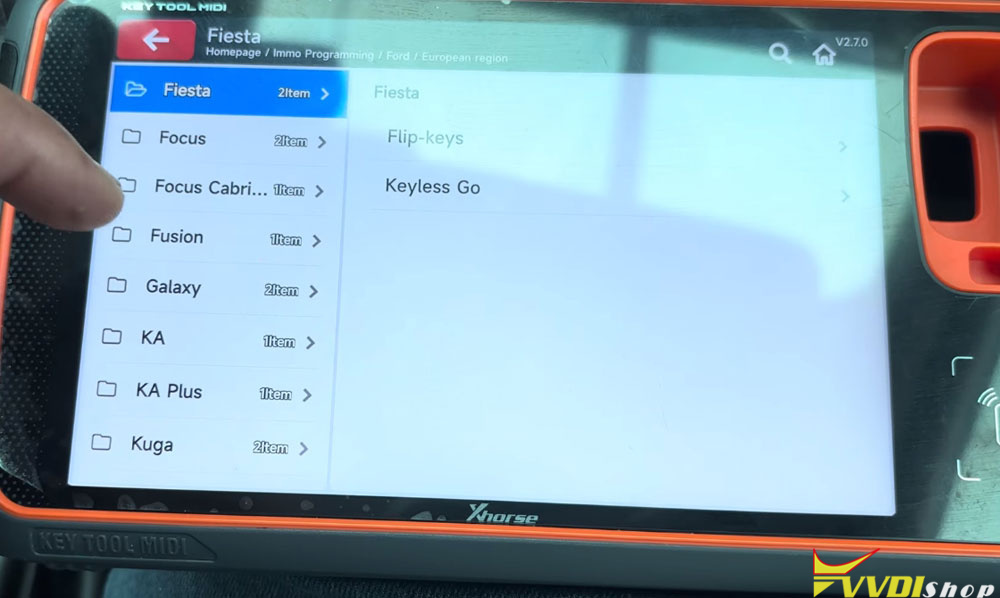
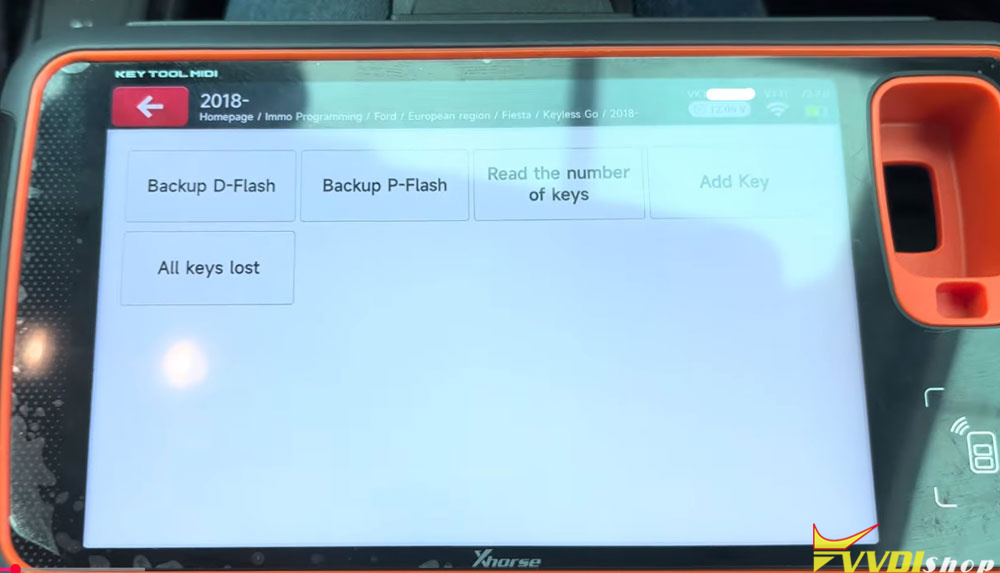
Turn on the ignition and navigate to IMMO Programming- Ford- European- Fiesta- KeylessGo- 2018 onwards.


2. Prepare the Vehicle
The device will prompt you to open and close the driver’s door once, then turn the ignition off. Follow these instructions precisely:
Open the driver’s door and close it.
Switch off the ignition.
Press “OK” on the device to confirm.
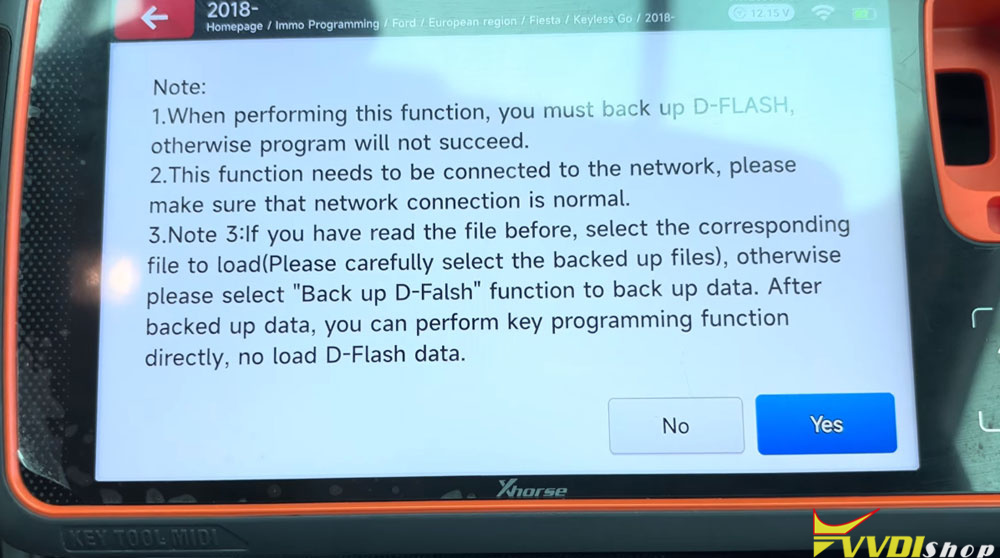
3. Back Up the D-Flash
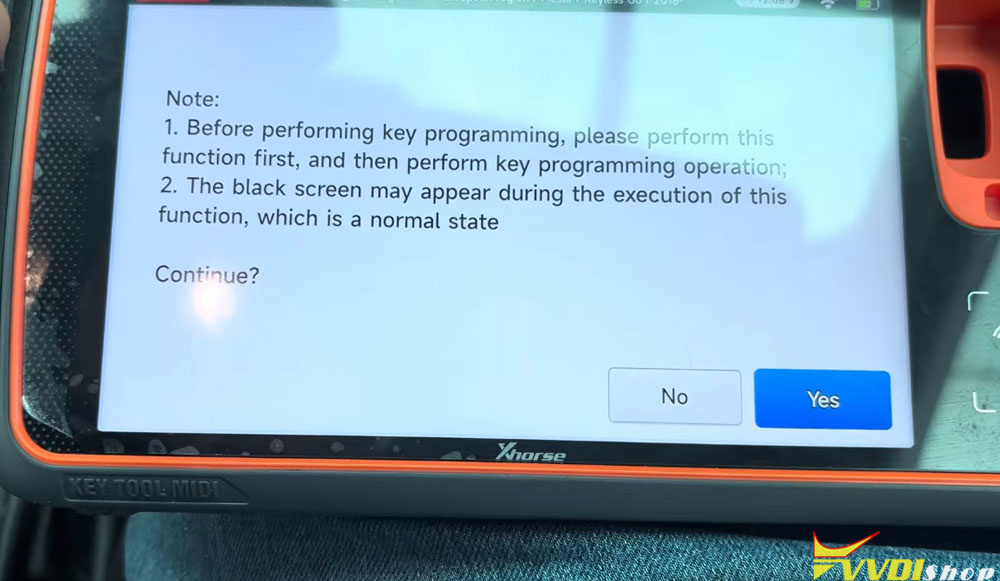
Before adding a key, the system requires you to back up the D-Flash. This step is critical for safeguarding the vehicle’s existing data.


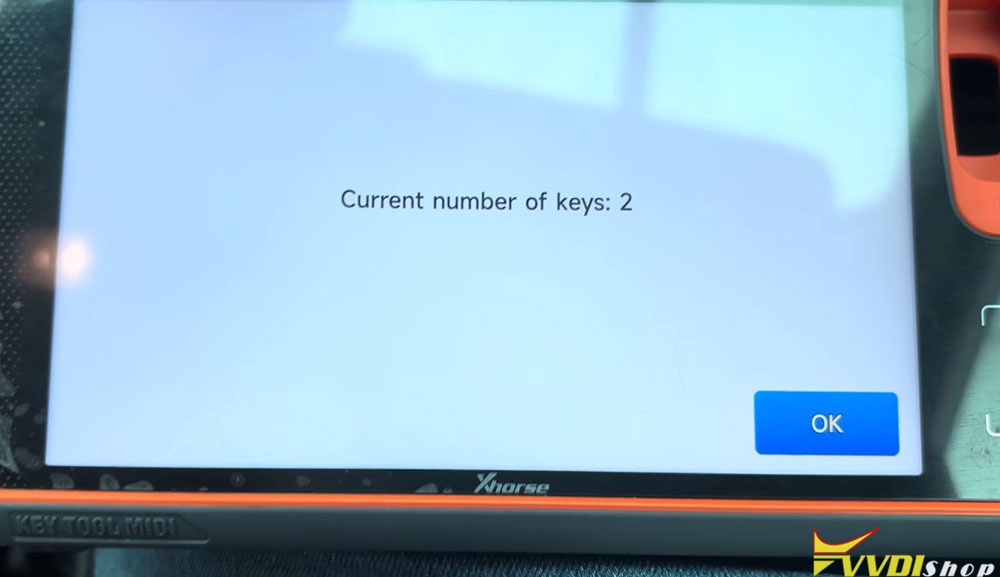
4. Read the Current Number of Keys
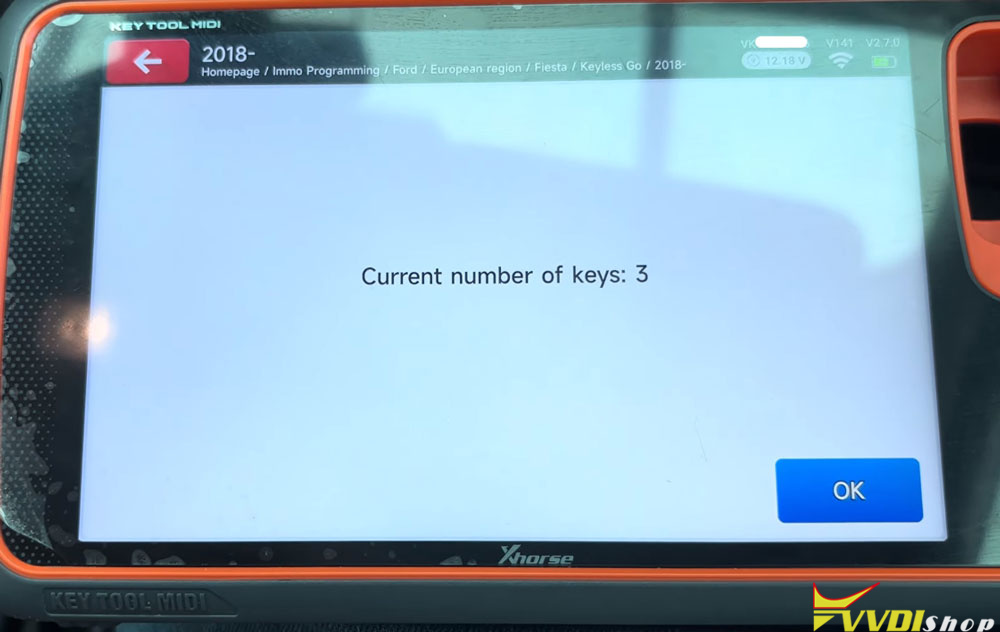
The device will read how many keys are currently programmed to the vehicle. In this case, there were two keys already registered.

5. Add the New Key
Select the “Add Key” function. The system will remind you again to back up the D-Flash, which has already been done.
Important: Throughout the entire process, the ignition must remain off. All operations are performed with the ignition switched off.


6. Place the New Key in the Sensing Area
Locate the key sensing area inside the vehicle. In the Ford Fiesta, this area is marked with a key symbol. The presenter had already tested this area by removing the battery from a key, placing it in the sensing spot, and successfully starting the vehicle—confirming the sensing area works even without a key battery.
Place the new smart key in the sensing area and press “OK” on the device.


7. Confirm the Key Count
The device should now display that the current number of keys is three (the original two plus the newly added one). Confirm this is correct.


Testing the New Key
Once programming is complete, test the new key:
Use the new key to start the vehicle.
Then test the original key to ensure it still works.
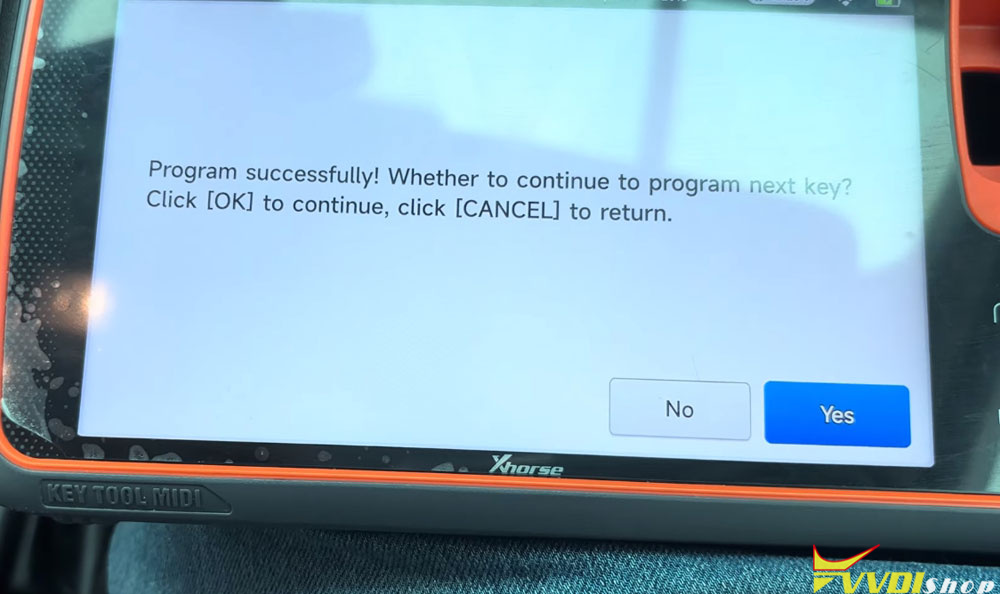
Both keys functioned correctly after the procedure.
Key Takeaways
- Ignition must be off during the entire key programming process.
- Always back up the D-Flash before adding a key.
- The key sensing area in a 2020 Ford Fiesta is marked with a key symbol and works even if the key battery is removed.
- After programming, verify that both the new and original keys start the vehicle.
This method applies specifically to the 2020 Ford Fiesta using a compatible key programming tool. Always ensure your equipment and software are up to date for the best results.

No comments:
Post a Comment
Note: Only a member of this blog may post a comment.