Showing posts with label mini prog. Show all posts

4/20/2026

Read BMW EWS3 Data with Xhorse Mini Prog and EWS3 Adapter

If you’re working on a BMW with an EWS3 immobilizer system, you might be used to using the AK90 programmer. However, there is another effective method using the Xhorse VVDI Mini Prog along with a specific adapter. In this guide, we’ll walk you through the entire process, including how to prepare the adapter, connect the hardware, read the EEPROM, and finally program a new dealer key.


Tools used:

Xhorse VVDI Mini Prog

Xhorse XDNP50 EWS3 Adapter

Xhorse Key Tool Max or Key Tool Max Pro

New key to be programmed

Read BMW EWS3 Data with Xhorse Mini Prog and EWS3 Adapter 1

Step 1: Prepare the Xhorse EWS3 Adapter

When you first open the Xhorse EWS3 adapter box, the adapter is not ready to use out of the box. You will need to modify it slightly.

Break the plastic holder into two separate pieces. One piece will serve as the chip holder.

Take the small connector piece that will interface directly with the EWS chip.

Cut one side of the cable and strip the wire slightly to expose the metal.

Slide the exposed wire through the small connector piece.

Wrap the wire around the circular terminal and close the connector securely.

Pull gently to ensure the wire is held firmly in place.

Once this is done, the adapter is ready to be installed onto the EWS module.

Read BMW EWS3 Data with Xhorse Mini Prog and EWS3 Adapter 2

Read BMW EWS3 Data with Xhorse Mini Prog and EWS3 Adapter 3

Read BMW EWS3 Data with Xhorse Mini Prog and EWS3 Adapter 4

Read BMW EWS3 Data with Xhorse Mini Prog and EWS3 Adapter 5

Read BMW EWS3 Data with Xhorse Mini Prog and EWS3 Adapter 6

Step 2: Connect the Adapter to the EWS Module

Follow the connection diagram shown in the Xhorse software. The key points are:

The shark (or clip) should be placed on the last leg of the chip as indicated in the diagram.

Connect the other end of the adapter to the Xhorse VVDI Mini Prog device.

Make sure all connections are secure before proceeding.

Step 3: Connect the VVDI Mini Prog and Read the EEPROM

Power on the Xhorse VVDI Mini Prog device.

On your phone or tablet, open the Xhorse app and connect to the device via Bluetooth or USB.

Navigate to:
IMMO -BMW – EWS3 – Adapter

The software will show you the exact wiring diagram again for confirmation.

Tap Continue, then tap Read to start reading the EEPROM data from the EWS module.

The reading process continues successfully. Proceed as long as data is being read.

Read BMW EWS3 Data with Xhorse Mini Prog and EWS3 Adapter 7

Read BMW EWS3 Data with Xhorse Mini Prog and EWS3 Adapter 8

Read BMW EWS3 Data with Xhorse Mini Prog and EWS3 Adapter 9

Read BMW EWS3 Data with Xhorse Mini Prog and EWS3 Adapter 10

Read BMW EWS3 Data with Xhorse Mini Prog and EWS3 Adapter 11

Read BMW EWS3 Data with Xhorse Mini Prog and EWS3 Adapter 12

Read BMW EWS3 Data with Xhorse Mini Prog and EWS3 Adapter 13

Step 4: Save and Open the EEPROM File

Once the read is complete, save the file to your device.

Go back to the main menu and open the IMMO Data Tool.

Select:
Europe – BMW -EWS3

Load the EEPROM file you just saved.

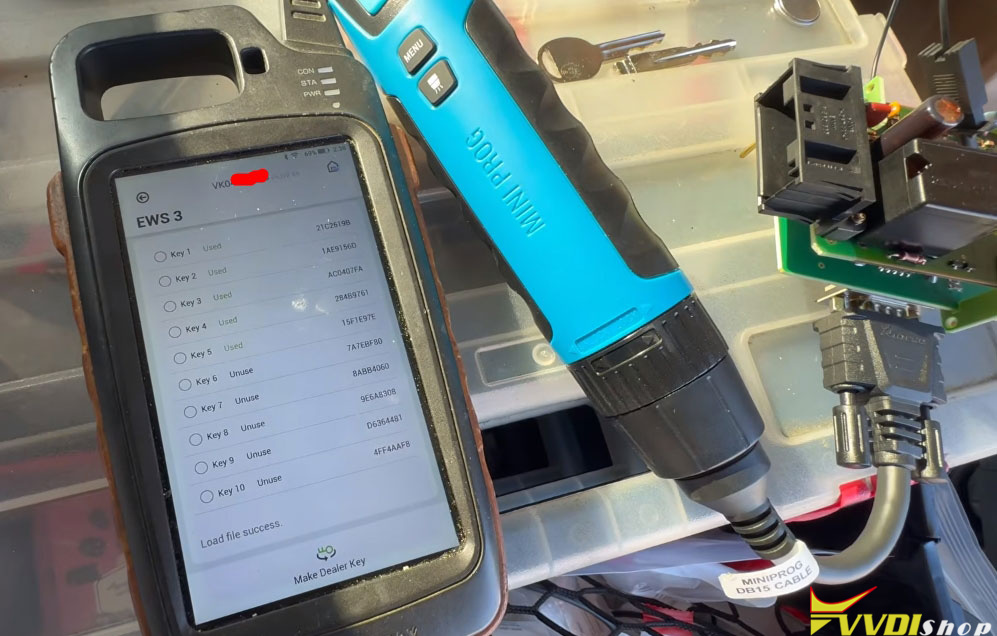
The software will now display the key information stored in the module, including which key slots are occupied or empty.

Read BMW EWS3 Data with Xhorse Mini Prog and EWS3 Adapter 14

Read BMW EWS3 Data with Xhorse Mini Prog and EWS3 Adapter 15

Step 5: Program the New Dealer Key

Place the new blank key into the Xhorse Key Tool Max or Key Tool Max Pro.

In the software, choose an empty key position (for example, key 7).

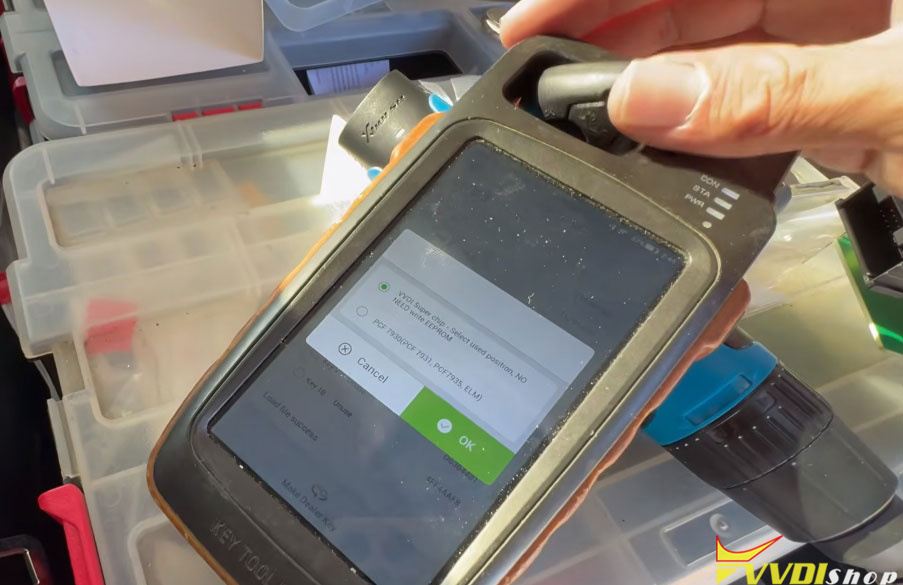
Click Make Dealer Key.

If you are not using a super chip, simply tap OK when prompted.

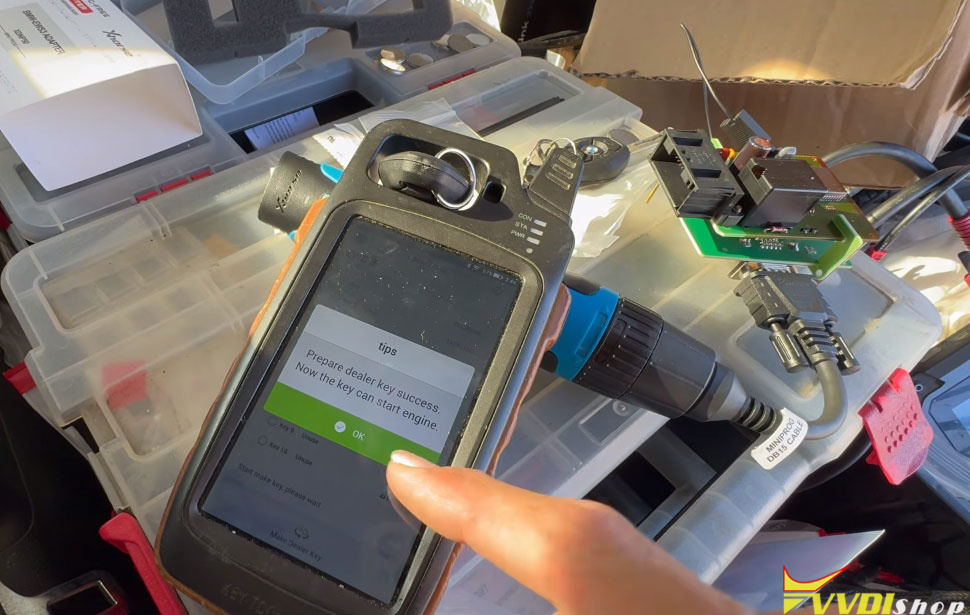
The software will begin programming the key. After a few seconds, you should see a success message:

“Prepare dealer key success. Now the key can start the engine.”

Read BMW EWS3 Data with Xhorse Mini Prog and EWS3 Adapter 16

Read BMW EWS3 Data with Xhorse Mini Prog and EWS3 Adapter 17

Read BMW EWS3 Data with Xhorse Mini Prog and EWS3 Adapter 18

Step 6: Test the Key in the Car

According to the tutorial, you do not need to write anything back to the EWS module. Once the key is successfully programmed as a dealer key, you can:

Insert the new key into the car’s ignition.

Turn it to the ON position once.

Turn it back off.

Start the engine immediately.

The engine should start without any issues. No further writing or synchronization is required.


www.vvdishop.com

3/03/2025

Xhorse Mini Prog Read BMW B58 DME ISN Code

 How-to tutorial: read BMW B58 DME ISN code with Xhorse Mini Prog and Bosch ECU adapter XDNP30.

B58=MG1CS003.

You can read MG1CS003, EDC17C60, Med 1.7.2 ect …
All BMW & Mini Cooper ECU you can read ISN with this tutorial.

This takes no longer than 10 minutes, job is easy. You can perform All Keys Lost situation on any BMW F series en E series or Mini Cooper.

Select Read ECU ISN function-BMW- B58

Xhorse Mini Prog Read BMW B58 DME ISN Code  1

Xhorse Mini Prog Read BMW B58 DME ISN Code  2

Xhorse Mini Prog Read BMW B58 DME ISN Code  3

Xhorse Mini Prog Read BMW B58 DME ISN Code  4

Mini prog asks to use XNDP30 Bosch ECU adapter.

Check wiring diagram.

Xhorse Mini Prog Read BMW B58 DME ISN Code  5

Connect DME ECU with Mini Prog via XDNP30 adapter.

Xhorse Mini Prog Read BMW B58 DME ISN Code  6

Xhorse Mini Prog Read BMW B58 DME ISN Code  7

Xhorse Mini Prog Read BMW B58 DME ISN Code  8

Read eeprom.

Xhorse Mini Prog Read BMW B58 DME ISN Code  9

Xhorse Mini Prog Read BMW B58 DME ISN Code  10

Read and save eeprom.

It will show ISN code.

Xhorse Mini Prog Read BMW B58 DME ISN Code  11

www.vvdishop.com


9/11/2024

VVDI2 Program 2007 VW Passat Comfort 95320 All Keys Lost

 How to program 2007 VW Passat with Comfort module 95320 all keys lost using Xhorse VVDI Mini Prog and VVDI2.

Model: 2007 VW Passat B6
Transponder: Megamos ID48
EEPROM chip 95320


1- Read EEprom in Circuit using VVDI Mini Prog (1 shot straight in the head),

Remove comfort module, read eeprom 95320 with Mini Prog or VVDI Prog.

VVDI2 Program 2007 VW Passat Comfort 95320 All Keys Lost 1

VVDI2 Program 2007 VW Passat Comfort 95320 All Keys Lost 2

VVDI2 Program 2007 VW Passat Comfort 95320 All Keys Lost 3

2- Decrypted EEprom with VVDI2


In VVDI2, select Immo dump tool, select Europe->Passat->Comfort ID48-95320
Upload eeprom data read by mini prog.
VVDI2 will extract pin code.

VVDI2 Program 2007 VW Passat Comfort 95320 All Keys Lost 4

VVDI2 Program 2007 VW Passat Comfort 95320 All Keys Lost 5

Read EEPROM out of circuit,  found 7th Byte

Go to Passat B6/CC 4th Immobilizer system
Find 7th bytes CS code from ECU dump file
Decrypt 95320 dump to get 7th bytes
Then you can make dealer key with CS and PIN.

VVDI2 Program 2007 VW Passat Comfort 95320 All Keys Lost 6

VVDI2 Program 2007 VW Passat Comfort 95320 All Keys Lost 7

VVDI2 Program 2007 VW Passat Comfort 95320 All Keys Lost 8

VVDI2 Program 2007 VW Passat Comfort 95320 All Keys Lost 9

VVDI2 Program 2007 VW Passat Comfort 95320 All Keys Lost 10

made 2 dealer key
1- overwrote key#3 with ID48 from smart key
2- Overwrote key #2 using XT27A Superchip.

PIN & CS Codes both available

only thing missing is
1- Key learning in the car
as well as
2- Remote learning in the car


www.vvdishop.com