Today, we’re exploring the XHORSE Remote Cloud System—a powerful solution that simplifies remote key generation and takes the guesswork out of matching keys to vehicles.
Understanding the Challenge
One of the most common challenges when creating duplicate keys is identifying the correct remote type for a specific vehicle. When a customer arrives with a single key and requests a duplicate, how do you determine which option to select on your XHORSE device?
This scenario plays out daily in workshops everywhere. A customer brings in their vehicle’s key—and you need to generate a compatible remote. The XHORSE Remote Cloud System solves this problem intelligently.
The XHORSE Device Range
Similar functionality is available across the XHORSE product line, including:
All these devices share comparable functions when it comes to remote cloning and generation.
Step-by-Step Remote Detection Process
1. Accessing Remote Cloud Mode
Start by navigating to the Remote Cloud option on your XHORSE device. This is where the magic happens—the system will help you identify which remote option you need.
2. Running Auto-Detection
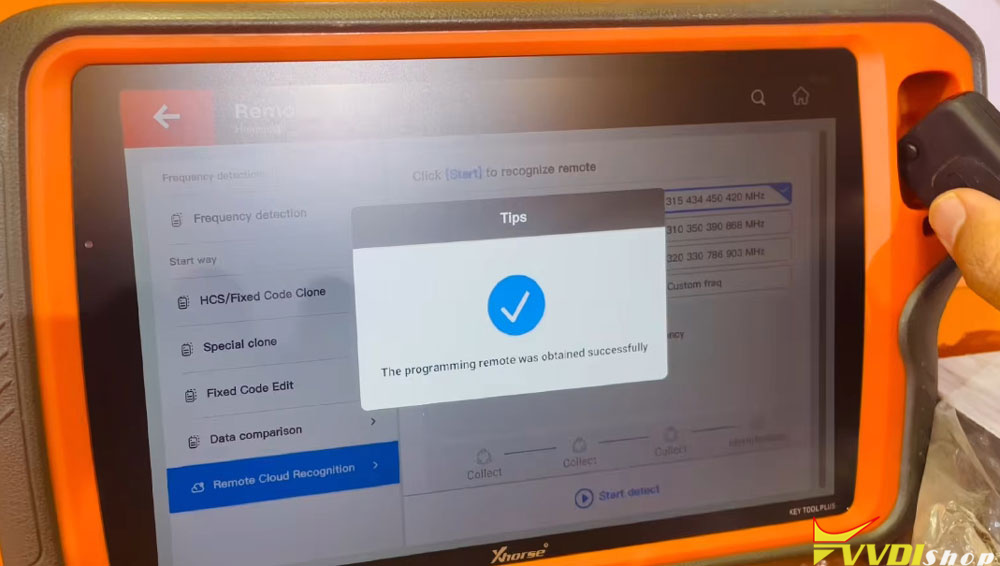
Here’s where the technology shines. Instead of guessing which remote type matches your customer’s key, let the device do the work:
- Select the Start Detect function.
- Select remote key type.
- Press the Lock button on the customer’s remote when prompted.
- Press it again as directed.
The device will analyze the signal and display the matching option.
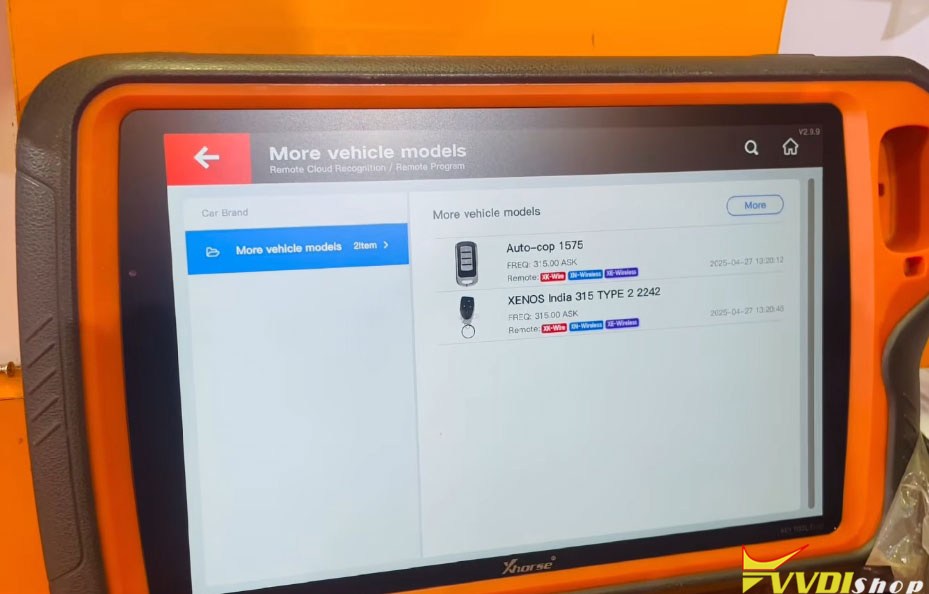
Within moments, your XHORSE device will display:
- The compatible generation option
- Part numbers (e.g., Q6000)
- All relevant details for that specific remote type
3. Real-World Example
The process works consistently across different vehicle makes. For instance, when detecting a Mahindra remote, the device quickly identifies it as a “Bero” option, making it immediately clear which selection to use.

Handling Multiple Options
Sometimes the system may display two, three, or even five possible options for a single remote. How do you know which one to choose? Rather than generating a physical remote for each option, XHORSE provides an elegant solution.
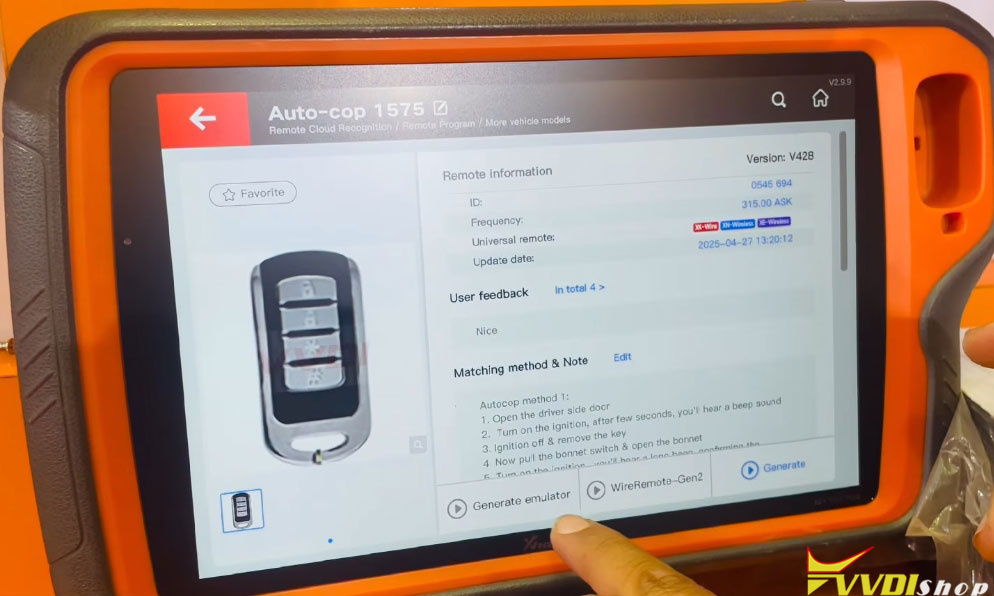
Using the Emulator Function
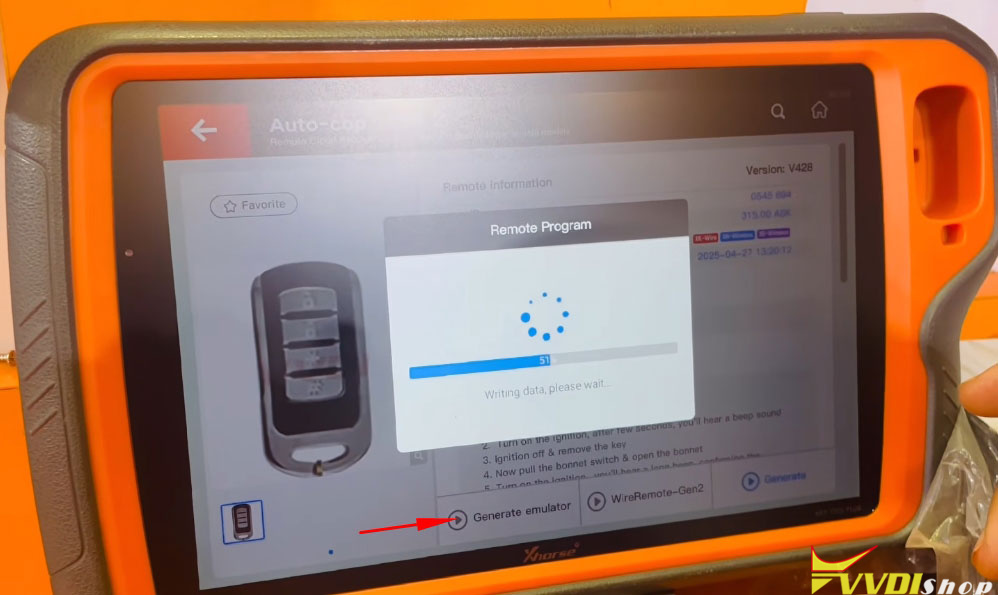
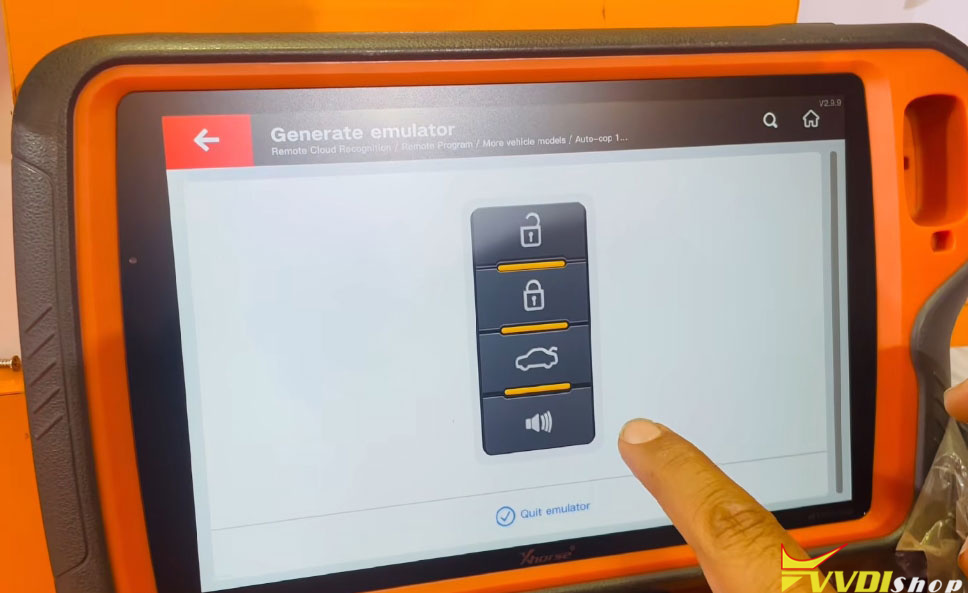
The built-in emulator feature allows you to test compatibility without generating a physical key:
- Generate the remote in the emulator (no physical key needed)
- Match it using the standard pairing procedure for that vehicle type
- Test functionality—if it works, you’ve found the right option
- Generate the physical remote only after confirming the correct option
This approach saves time, money, and materials by preventing unnecessary remote generation.
Practical Example: AutoCop Remote
When testing multiple options (as shown with an AutoCop central locking remote), simply:
- Generate each option in the emulator
- Test pairing to the vehicle
- Identify which option works perfectly
- Proceed to generate the physical remote only for the confirmed option


Key Benefits of the XHORSE Remote Cloud System
1. Time Savings
Auto-detection eliminates guesswork, allowing you to quickly identify the correct remote type.
2. Reduced Waste
Testing via emulator means you only generate physical remotes when you’re certain of compatibility.
3. Expanded Knowledge
Even when you’re unfamiliar with a particular vehicle or remote type, the system guides you to the right solution.
4. User-Friendly Interface
The intuitive detection process requires minimal input—just press the lock button and let the device analyze.
5. Versatility
Works across multiple vehicle makes and remote types, from Mahindra to Activa and beyond.
Tips for Success
- Always start with auto-detection when unsure about remote compatibility
- Use the emulator to test multiple options before generating physical remotes
- Save the correct options for frequently encountered vehicles
- Update your device regularly to ensure access to the latest remote databases
- Practice the detection process to become more efficient over time
Conclusion
The XHORSE Remote Cloud System represents a significant advancement in automotive key programming. By combining intelligent auto-detection with flexible emulation capabilities, it transforms what was once a trial-and-error process into a precise, efficient workflow.
Whether you’re a seasoned professional or new to key programming, these tools help you work smarter, save time, and deliver better results for your customers. The small tricks and techniques—like using the emulator to test compatibility—can dramatically improve your efficiency and expand your service capabilities.
As technology continues to evolve, staying current with these solutions ensures you remain competitive and capable in the automotive locksmith industry. The XHORSE system makes remote generation truly “made easy,” turning complex identification tasks into straightforward, guided processes.
www.vvdishop.com